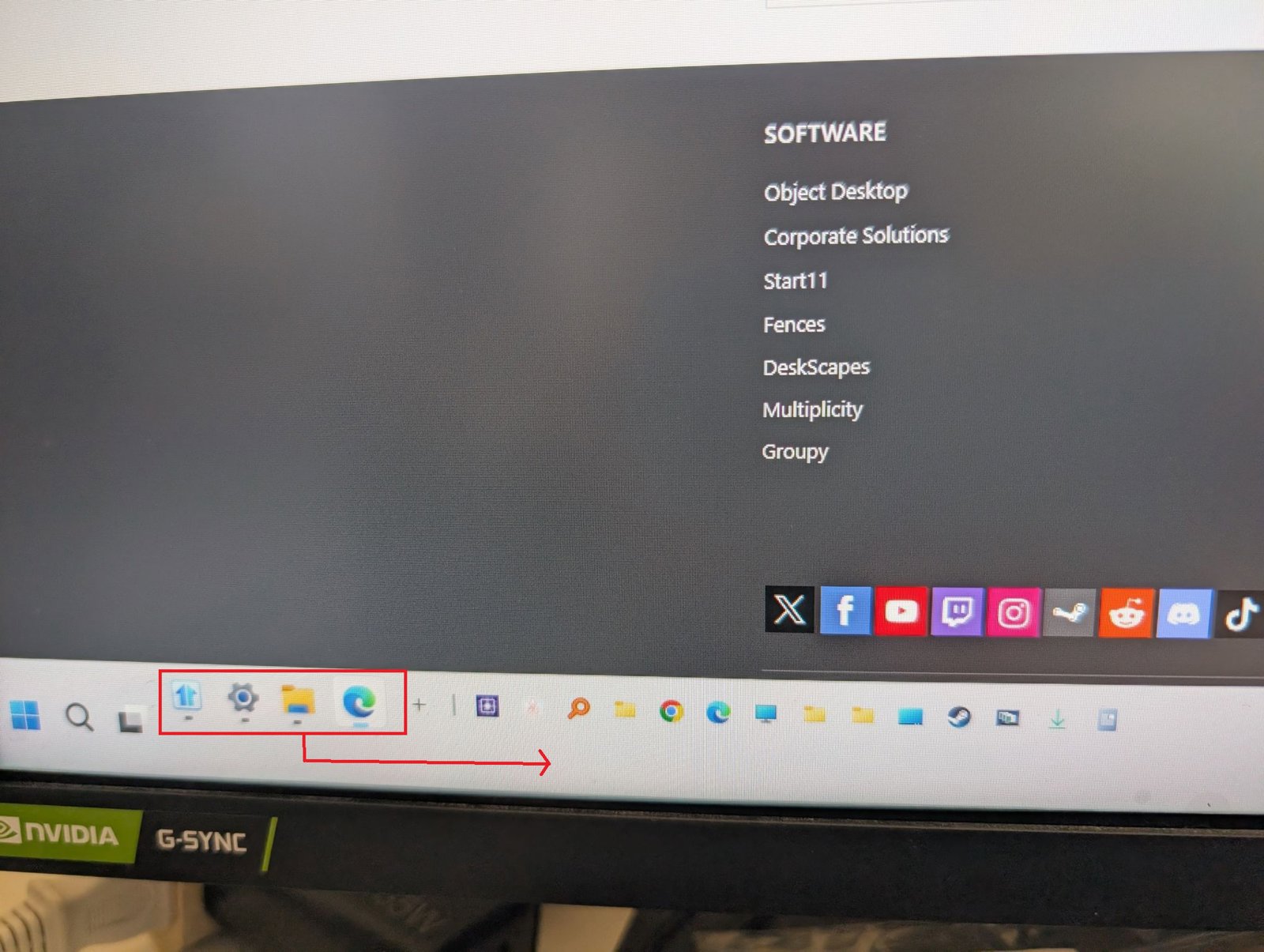
How to place Quick Launch on top row and Taskbar buttons on bottom row? (Start11 v3)
from  Stardock Forums
Hello,
I am trying to customize my taskbar layout using Start11 v3 on Windows 11, but I am having trouble reordering the elements.
My Goal:
I have set the taskbar to 2 rows. I want to place the Quick Launch toolbar on the top row and all the pinned/active app icons (taskbar buttons) on the bottom row.
I have set the taskbar to 2 rows. I want to place the Quick Launch toolbar on the top row and all the pinned/active app icons (taskbar buttons) on the bottom row.
Current Situation & Issue:
- I have enabled "Allow the taskbar to be resized by dragging its edge".
- I can drag the divider lines left and right to resize the areas.
- However, the pinned/active apps area is strictly locked to the left side of the Quick Launch toolbar.
Whenever I try to drag the divider line all the way to the left to force the app icons to wrap around to the bottom row, they remain locked in place and will not move down.
Questions:
- Is this a technical limitation of Start11 v3 on Windows 11?
- Is there a specific trick or another setting required to make the app icons move to the bottom row?
I have attached screenshots of my current settings. Any advice or workarounds from the community or devs would be greatly appreciated!
Thank you!